Frequently Asked Questions
Have Questions? Contact Us
If you have any questions or feedback, please don't hesitate to contact us.
[email protected] ** more contact methods coming soon **Betting Terms
Match Winner
Who will win the match
Set Winner
Who will win current set
Correct Score
Best of 5, could be 1 of 6 options
Point Handicap
Total Points +/- of Player A/B
Set Handicap
Total Sets +/- of Player A/B
Total Points
Total Points in Match
Point Handicap (Set)
Amount of points a player wins/loses by in a set
10-10 or more in a set
Overtime/OT/Extra Points
Splits
Loser of 1st set to win 2nd set
Sweep
3-0 or 0-3
Reverse Sweep
When the player down 0-2 comes back and wins 3 straight sets
WHAT IS THIS STUFF?
The main point of this application is to help you find the matches you care about as fast as possible. That way you can think about things other than TT and still feel like you aren't missing out.
Important Buttons

View Match Page

Toggle Favorite

Quick View History
LEGEND

HOW DO I USE THIS?
HOW TO FIND THE MATCHES YOU CARE ABOUT
1. Use the filters for L5, L10, L15, L20to narrow down the matches you need to go through Then open history quick view button to see match history, if you like the match hit the favorite button
2. Then open history quick view button to see match history, if you like the match hit the favorite button
3. Filter columns to show only your favorites by using only favorites button
USING FILTERS
Use the filters for L5, L10, L15, L20 to narrow down the matches you need to go through. Filters can be stacked, so be sure to experiement to find the combination you like.

→ Hide & Show Filters Button is an accordian to save screen space once youre done
→ Adjust only one of the L5, L10, L15, or L20 filters at a time
→ You can filter for OVER or UNDER at the same time. The two input numbers and both will combine in the results. (as in the image above)
2. If you see one you like: click View Quick History & Favorite
If you see one you like: click View Quick Historyand if you think you like it Favorite it (example below)
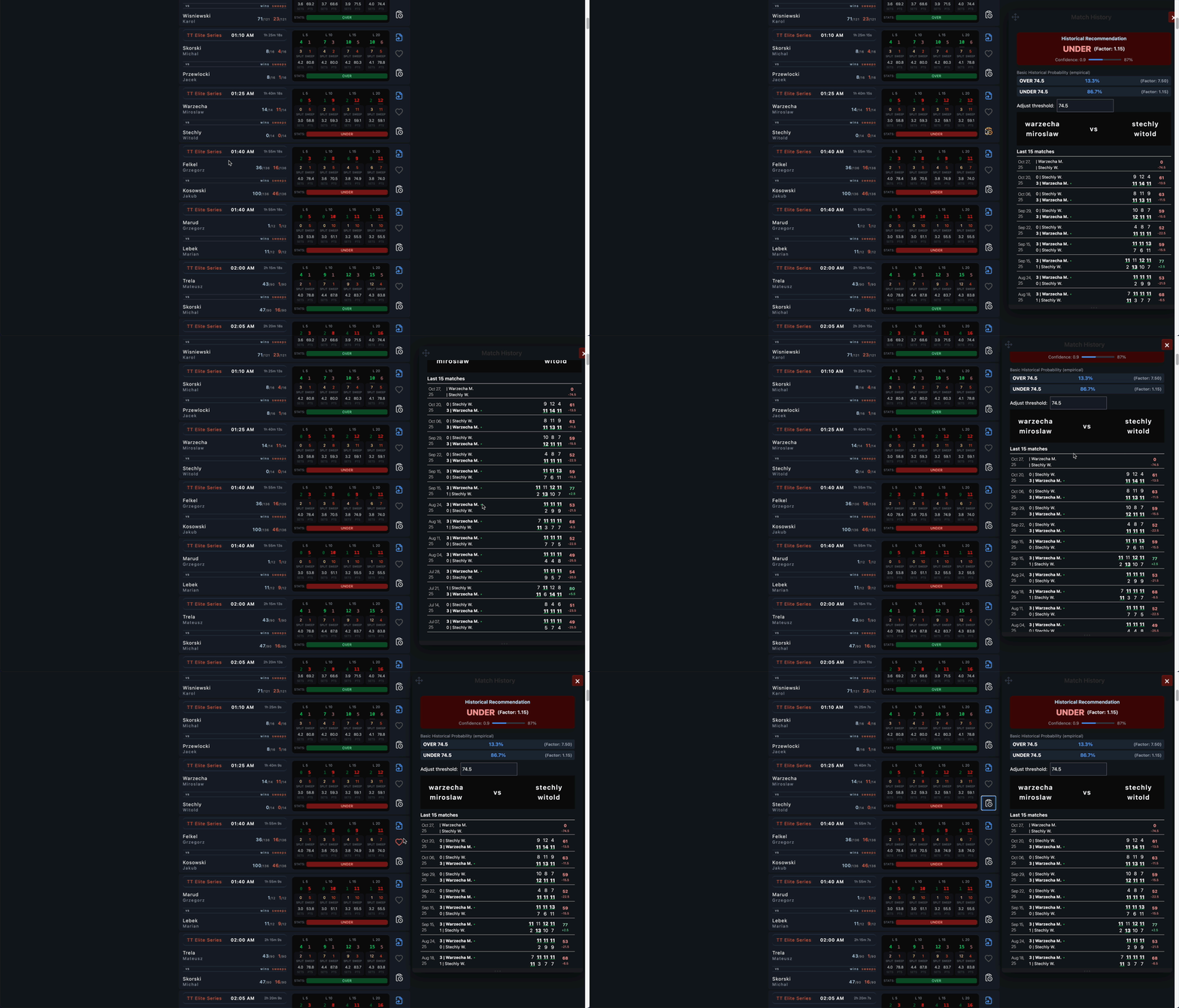
→ You can adjust the placement & length using the top and bottom of the history popup
→ You can leave the window open or close it, the position is saved in the desktop version so dont worry about closing it.
→ TIP: Try leaving the window open and just clicking the history buttons on multiple matches
More on Filters
Understanding the Match Filters Panel
The filters panel allows you to narrow down matches based on various statistical criteria. Each filter uses a pair of input boxes where you can set minimum and maximum thresholds. Use -1 in either box to disable that threshold (no minimum or no maximum).
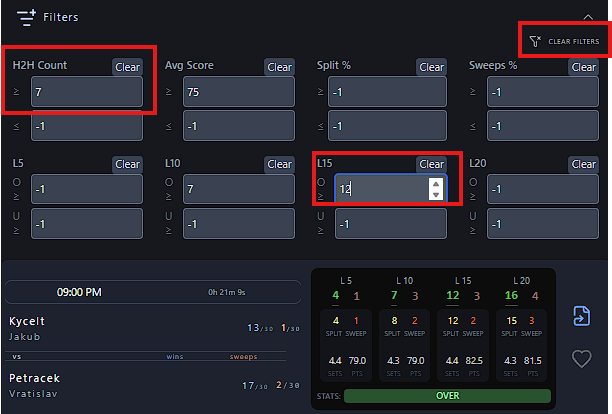
Image coming soon - screenshot will be added here
Filter Types:
- H2H Count: Filter by the total number of head-to-head matches between the two players. For example, setting a minimum of 7 shows only matchups where players have faced each other at least 7 times.
- Avg Score: Filter matches based on the average score across their historical head-to-head games.
- Split %: Filter by the percentage of matches where both players won at least one game (matches that weren't sweeps).
- Sweeps %: Filter by the percentage of matches that ended 3-0 or 0-3.
Recent Form Filters:
- L5, L10, L15, L20: Filter based on win counts in the last 5, 10, 15, or 20 matches for each player. These filters help you identify players in good or poor recent form.
Controls:
- CLEAR FILTERS: Click this button (top-right of the filters panel) to reset all filter values and clear all active filters at once.
- Clear (individual): Each filter row has its own "Clear" button to reset just that specific filter.
Tip: Filters are applied in combination. Setting multiple filters will show only matches that meet ALL the specified criteria. This allows you to create very specific searches, such as "players with 10+ head-to-head matches AND at least 5 wins in their last 10 games."
Match Information
What do the colored indicators mean?
Green dots indicate live or ongoing matches, blue text shows upcoming match times, and gray indicates past matches. The "Live" prefix appears next to matches currently in progress.
How do I view detailed H2H statistics?
You can enable detailed statistical breakdowns by accessing your H2H Display Settings through the gear icon  . This feature shows advanced metrics including the
number of splits (matches where players traded games), number of sweeps (3-0 or 0-3 results), average number of sets per match, and average number of points per match.
. This feature shows advanced metrics including the
number of splits (matches where players traded games), number of sweeps (3-0 or 0-3 results), average number of sets per match, and average number of points per match.
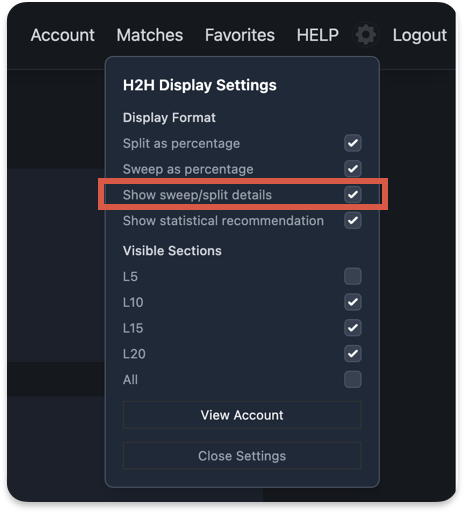
Image coming soon - screenshot will be added here
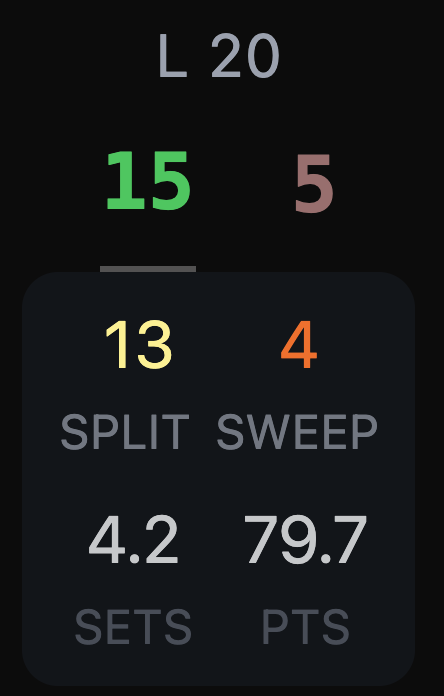
Image coming soon - screenshot will be added here
Once enabled, you'll see a statistical dropdown next to each match showing:
- Splits: Number of matches where both players won at least one game
- Sweeps: Number of 3-0 or 0-3 matches
- Avg Sets: Average number of games per match
- Avg Points: Average total points scored per match